

In this article
Use the quick answer first, then follow the mobile workflow and sharing sections to avoid the usual iPhone resume problems.
Quick answer
To create a resume on an iPhone, use a mobile-friendly builder that keeps the structure clean, lets you tailor the content quickly, and makes sharing easier than passing random files around. The best iPhone resume workflow is simple, ATS-friendly, and easy to update on the go.
What you need from an iPhone resume workflow
- A builder that is usable on a small screen without turning every edit into a chore.
- Easy ATS-friendly formatting that stays clean when exported or shared.
- Fast ways to tailor a resume for new roles while you are away from your laptop.
- A cleaner sharing flow than downloading random files and sending them around manually.
Best workflow for creating a resume on an iPhone
- 1Start with a clean base resume or import an existing one.
- 2Edit your summary and top bullet points first so the most important changes happen early.
- 3Tailor the version to the exact role you are applying for instead of only changing the title.
- 4Export or share from one clean source so you do not send the wrong version later.
Keep it ATS-friendly even on mobile
Mobile editing should not mean sloppy formatting. The same rules still matter: clean headings, relevant keywords, obvious dates, and a format that is easy to scan. If you need the deeper ATS checklist, use this ATS-friendly resume guide with your mobile workflow.
Mistakes to avoid
- Trying to do all formatting manually in a notes app or word processor on a phone.
- Using template-first tools that look nice but make ATS readability worse.
- Editing on your phone but losing track of which version you actually sent.
- Treating mobile resume creation as a backup instead of a serious workflow.
Final takeaway
Creating a resume on an iPhone works best when mobile is treated as a real workflow, not a backup plan. That means clearer editing, cleaner tailoring, and easier sharing. ResumeeBee fits that well because it supports ATS-friendly resumes, tailored versions, hosted profile sharing, and job tracking in one mobile-first flow.


Frequently asked questions
Can I create a real resume on an iPhone?
Yes. The main requirement is using an app that keeps the structure clean, makes editing practical on mobile, and does not break readability when you export or share the result.
What is the best app to create a resume on an iPhone?
The best app is the one that supports ATS-friendly structure, easy tailoring, and clean sharing. For a broader mobile workflow, ResumeeBee is one of the strongest options.
Is it better to build a resume on iPhone or desktop?
Desktop still gives you more space, but iPhone can work very well when the app is built for it. For many people, the most useful workflow is editing, tailoring, and sharing directly from mobile when needed.
How do I keep a mobile-built resume ATS-friendly?
Use a simple format, standard headings, and role-relevant wording. Avoid overdesigned layouts even if they look more impressive on a phone screen.
Related reading
Continue with the most relevant guides and comparisons for the next step in your job-search workflow.
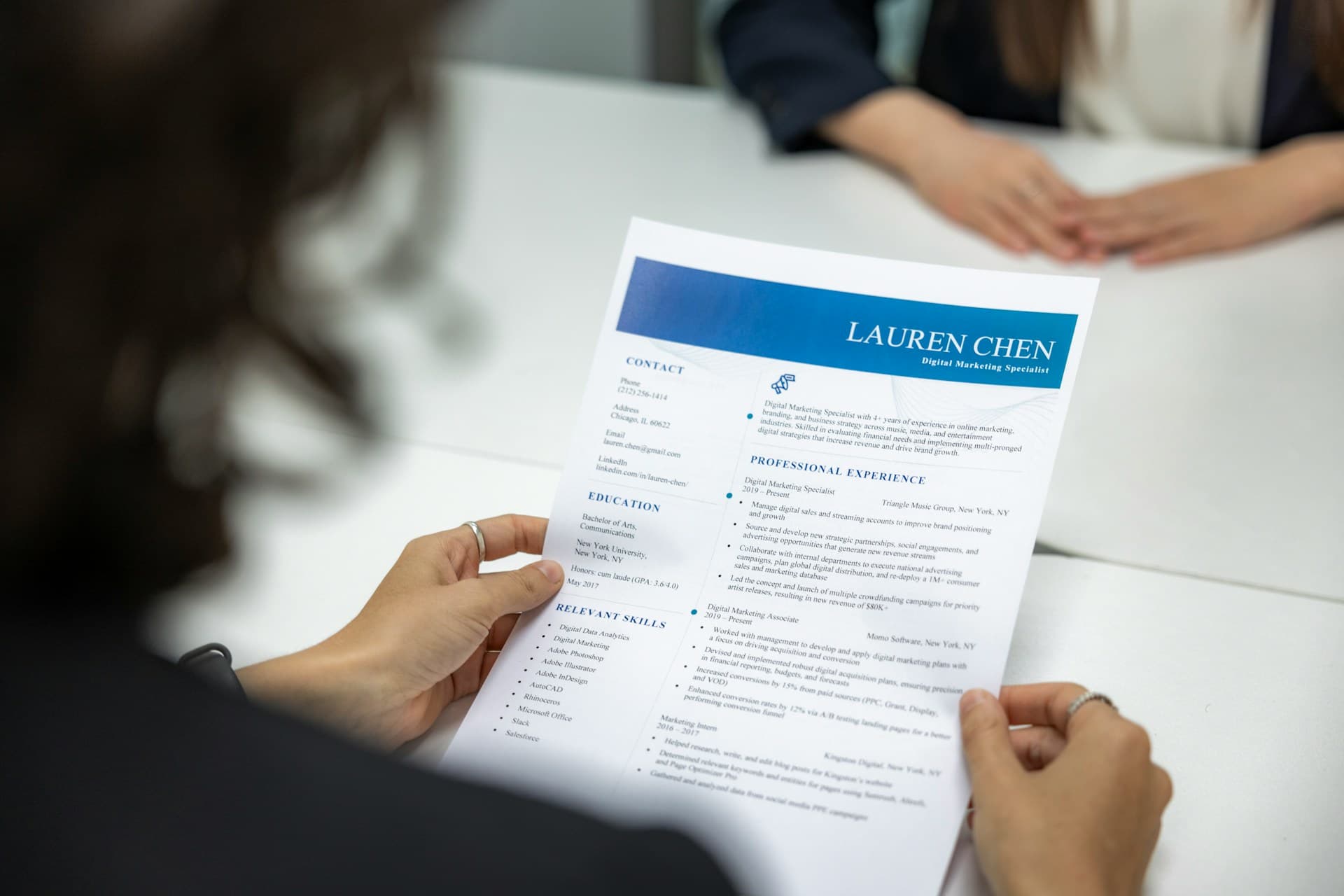
How to Tailor a Resume to a Job Description
Learn how to tailor a resume to a job description by adjusting your summary, bullet points, skills, and keywords without exaggerating your experience.
Read article
How to Build a Strong Resume in 2026 and Tailor It for Better Jobs
Learn how to build a stronger base resume, tailor it for specific roles, improve ATS alignment, and share it more effectively with recruiters.
Read article
Do You Really Need to Tailor Your Resume for Every Job?
A practical guide to resume tailoring in 2026, including when deep tailoring pays off, when base versions are enough, and what to change first.
Read article